How it works
Wander Bean has five buttons that help you navigate the app: Home, Map, +, Shops and Settings. Here is what each one does.
Add a coffee shop
Tap the round + button, then New shop. There are three ways to add a new coffee shop:
- Search cafés to find it by name. The name, address and city are filled in for you.
- Use current location if you are at the coffee shop.
- Tap a place on the map, find the shop on the map, tap its icon or its label, and the name, address and city are filled in and the pin is dropped. Tap an empty spot to drop a plain pin and type the details yourself. Expand the map by tapping the button at the top right of the map.
Search needs a connection. Without one it stops after 10 seconds and tells you to check your connection or tap the map to drop a pin.
You can change the name, and the address and city. Address and city are optional.
You can also skip the map: type the name under Details and carry on. A shop added that way has no pin on the Map tab and no Directions button.
You can also start from the top of the Home screen: type a name in the search field and tap Search Apple Maps for a new shop.
Log a visit and rate it in beans
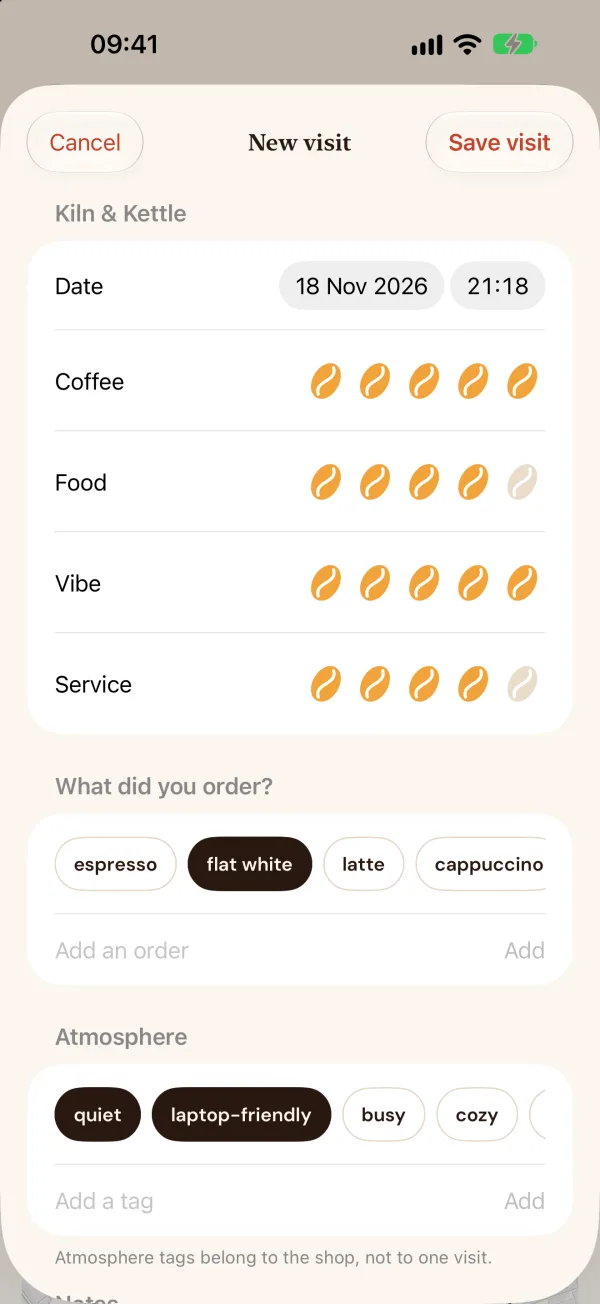
Tap Next and rate your visit. The date and time are automatically entered for you but you can change the date and time as needed.
Rate the Coffee from one to five beans along with the Food, Vibe and Service, if you want to.
Under What did you order? you can add what you ordered by simply tapping one of the preset options or add your own.
Under Atmosphere, select one of the preset options or type your own tag.
Under Notes you can add a note about your visit.
Under Photos, you can add photos from your visit. The first photo you add is used as the “cover” photo for your visit in the app.
When you are done entering the details from your visit, tap the Save visit button in the top right of the screen and you are done adding the visit to Wander Bean.
Visiting a coffee shop you have been to before and want to log another visit? Tap + and select the shop from Visited before list, enter your visit details, and tap the Save visit button in the top right of the screen.
Save places to try
Heard of a coffee shop that you want to visit later on? Tap the + button, tap New shop, and find the coffee shop on the map or enter the details yourself. Tap Save to try later and the shop is saved without a visit.
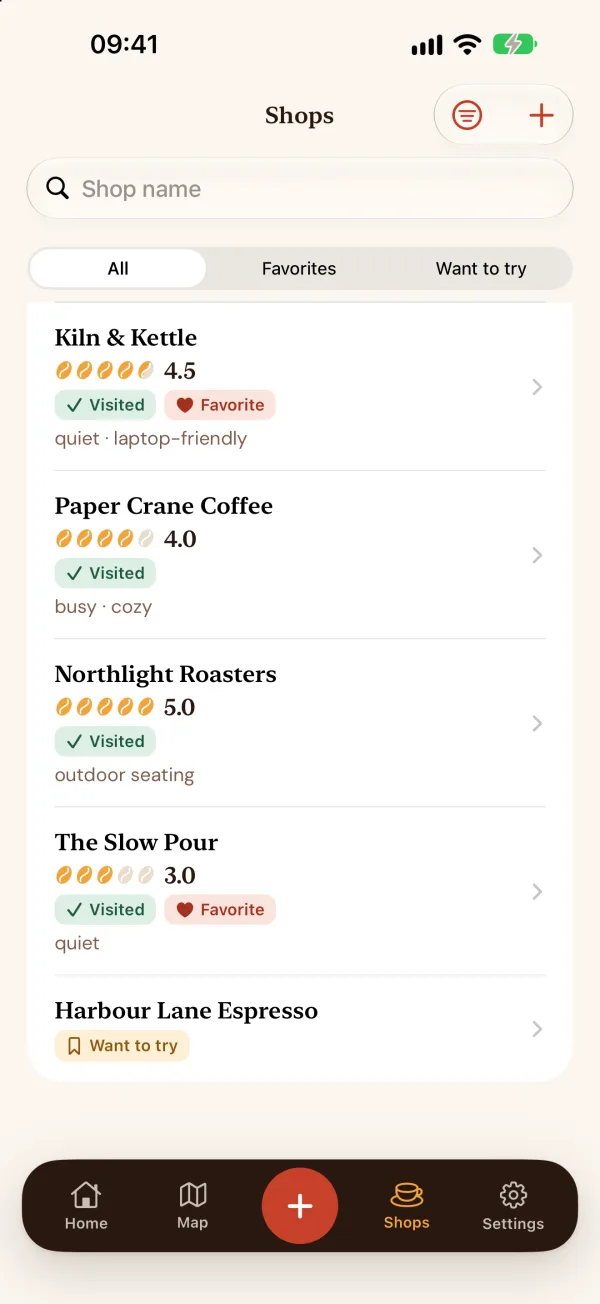
It then shows up with a Want to try tag, in the “Want to try” section on the app main screen and as a bookmark pin on the map. When you decide to visit, log the visit and it becomes a visited shop.
Track your favorites
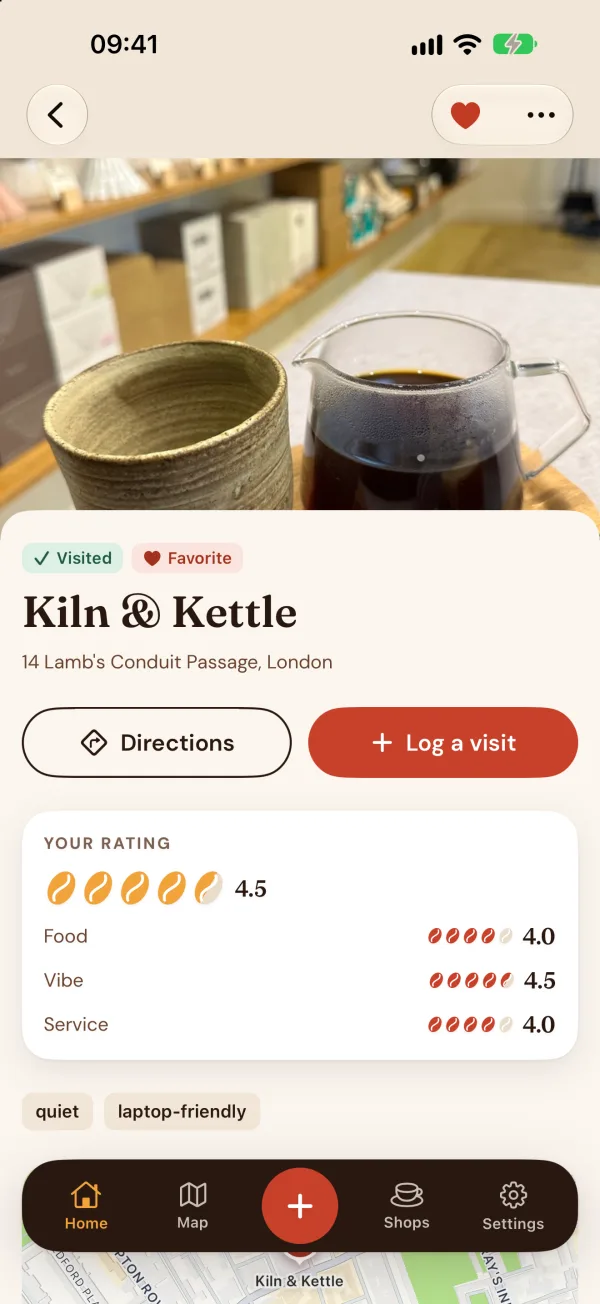
Open a visited coffee shop entry and tap the heart icon in the top right corner to mark the coffee shop as a “favorite”. Tap it again to unmark it as a favorite.
On the same page, tap a photo to see it full screen. Swipe to the next one, and pinch or double-tap to zoom.
Find a visited coffee shop again
- Home has a search field for your visited coffee shops, with a button to look for a new one in Apple Maps, your recently visited shops, your top rated and your want-to-try list. It also counts the shops and cities you have visited and your average coffee rating. Tap a number to see the shops behind it: all visited shops, shops by city, or best coffee first.
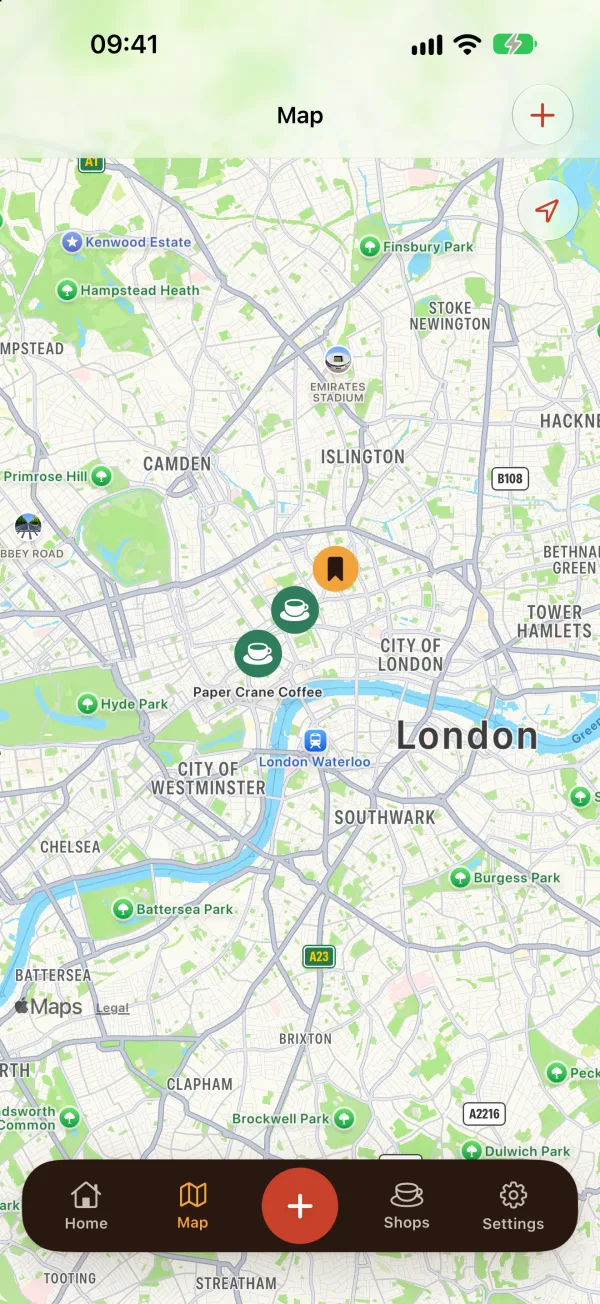
- Map shows every Wander Bean log entry as a pin: a “cup” for visited coffee shops and a “bookmark” for a coffee shop you want to try. Tap a pin to open the coffee shop entry and its details.
- Shops button lists everything logged in Wander Bean. Switch between All, Favorites and Want to try. Search by coffee shop name or use the filter button, top right, to sort the list by most recent, coffee rating or name. You can also filter by an atmosphere tag if you added one.
Export your data
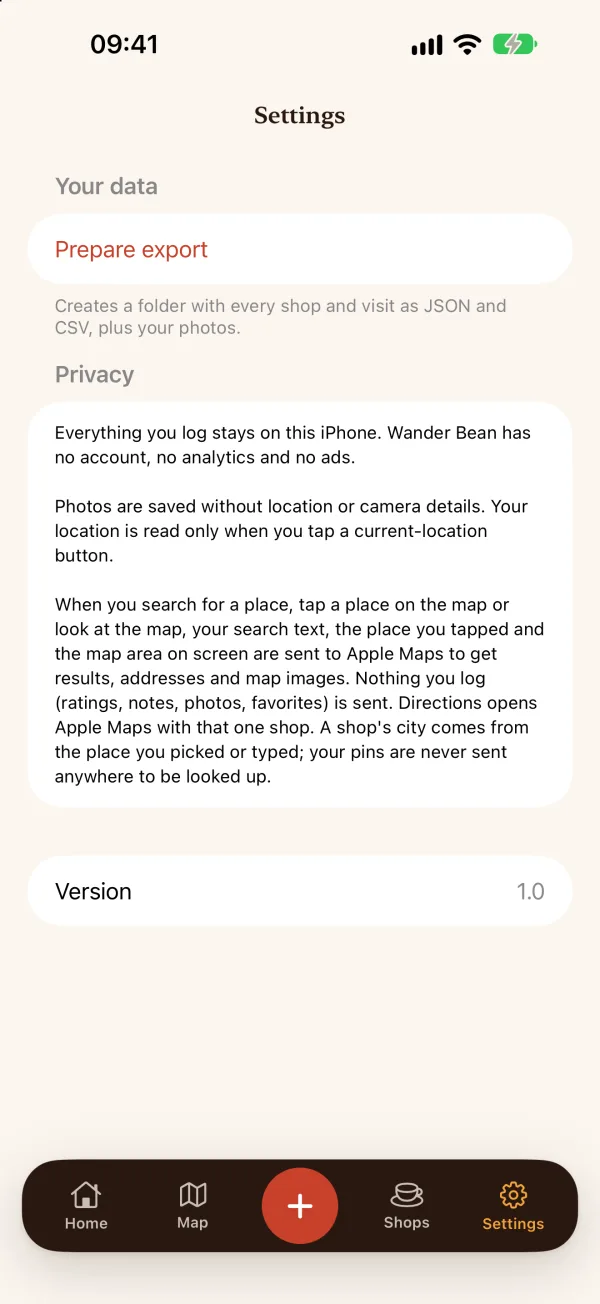
In Settings, tap Prepare export, then Share or save export. You get a folder with:
wanderbean.json, with every logged visit and tagsvisits.csv, one row per visit, which opens in any spreadsheet programphotos, your pictures as JPEG files with location data stripped out
Save it to Files on your iPhone, AirDrop it to your Mac or another iPhone, or send it wherever you like. It is your file and your data. The Wander Bean app does not share this information with anyone and we do not retain copies.